 SKATE 3 BROWSER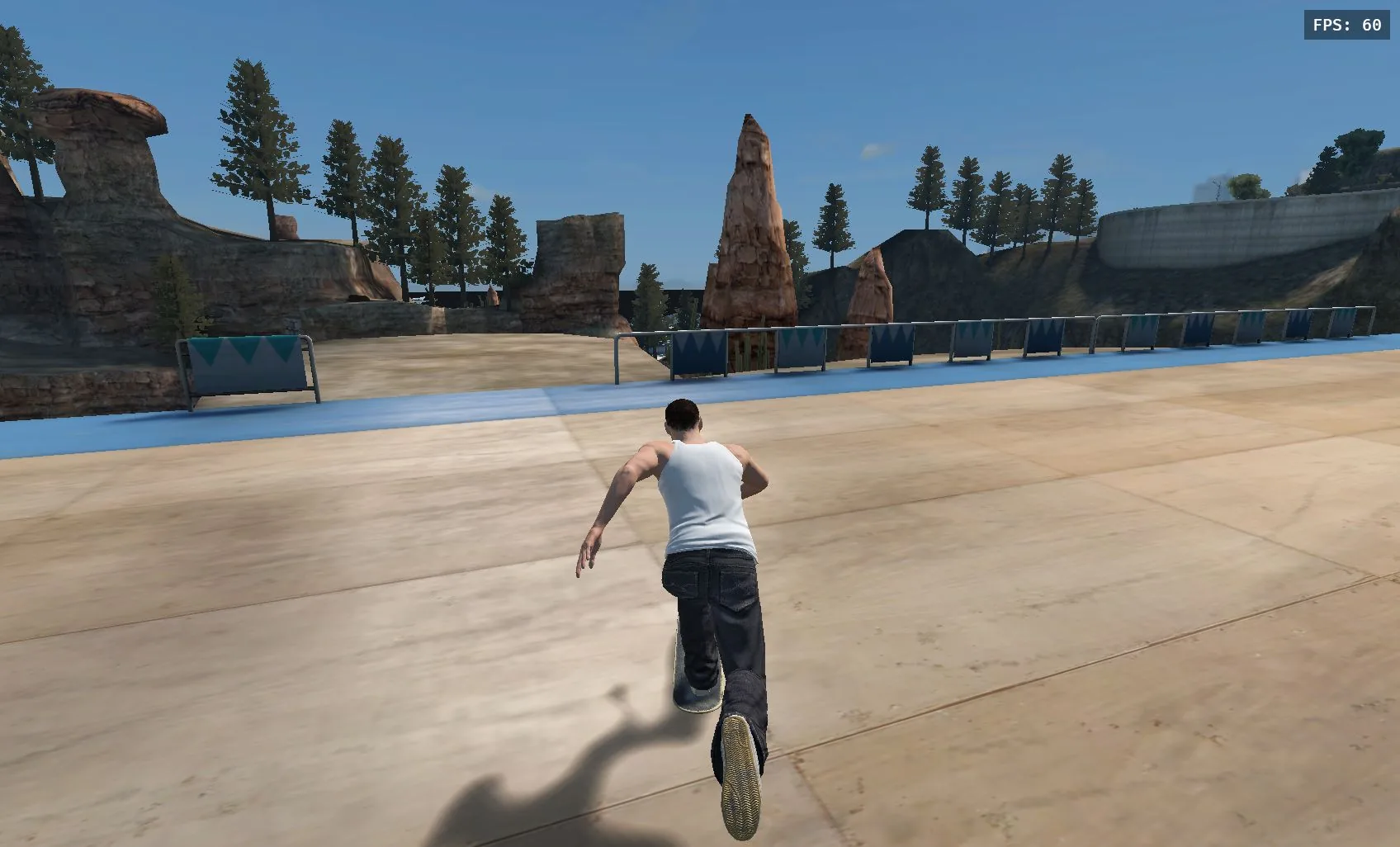
SKATE 3 BROWSER
Skate 3 Browser is a fan-made browser project with keyboard or controller support. No download required.
Free to play · No download · WebGPU browser required
Skate 3 Browser Quick Controls HUD
Full Skate 3 Browser controls table below — every binding, explained. On a gamepad, the left stick steers and the right stick is your FlickIt stick.
Before You Play Skate 3 Browser
Skate 3 Browser runs entirely in a desktop browser tab — no launcher, no install. Four things are worth knowing before your first session:
Play Skate 3 Browser in Chrome or Edge
Skate 3 Browser Keyboard & Gamepad Support
Streaming Skate 3 Browser Game Assets
Starting Freeskate in Skate 3 Browser
Skate 3 Browser: A Fan-Made Skateboarding Experience
Drop into Skate 3 Browser for quick sessions: learn the FlickIt controls, explore Port Carverton, and play with a keyboard or controller. No installation required.
Skate 3 Browser Rust Engine
Fast browser-based physics for responsive board control, smooth movement, and satisfying bail reactions.
Skate 3 Browser WebGPU Graphics
WebGPU-powered lighting, motion, and visual effects that make Port Carverton feel alive. WebGPU is required.
Skate 3 Browser Dual Input
Start with WASD and arrow keys, or plug in an Xbox or PlayStation controller and skate your way.
Skate 3 Browser Multiplayer
Host or join supported multiplayer sessions with private room codes, and customize your skater with .cfss files.
How to Play Skate 3 Browser
1. Launch Skate 3 Browser
2. Pick a Skate 3 Browser Spot
3. Steer & Push in Skate 3 Browser
4. Pop Ollie Tricks in Skate 3 Browser
5. Open the Skate 3 Browser Menu
Skate 3 Browser Controls & FlickIt Bindings
Learn the Skate 3 Browser controls for steering, pushing, grabbing, spinning, and landing tricks with a keyboard or gamepad.
| Action / Function | Keyboard Binding | Execution Notes |
|---|---|---|
Steer & Carve | WASD | Analog turning and skater body balance |
FlickIt (Tricks) | ↑↓←→ | Flick like a thumbstick: ↓ then ↑ pops an Ollie; flick left/right for Flips |
Push (Accelerate) | Space | Tap repeatedly on flat ground to generate speed |
Air Grabs | Z (Left)X (Right) | Hold in mid-air to grab deck edges for extra style |
Triggers & Spins | ShiftC | Carve spins in air, revert on transition ramps |
Action Buttons | QER | Alternate pushes, taunts and board drops |
Pause & Online Menu | EscTab | Access worlds, skater settings, camera, and online rooms |
Pro Tip: Pause Menu (Esc) → PLAYER includes Trackpad Mode, turning your mouse into a fluid FlickIt stick!
Skate 3 Browser Trick Guide: From First Ollie to Full Lines
Use the right stick—or arrow keys—to build lines from the ground up. Start with an Ollie, then add flips, grinds, and manuals.
Ollie (The Foundation)
The core Skate 3 Browser trick. Pull back on the FlickIt stick (or press ↓), then quickly snap forward (↑) to pop off flat ground.
Nollie (Nose Ollie)
Shift your skater's weight onto the nose, then snap backward to pop cleanly off the front.
Kickflip
A classic Skate 3 Browser street trick. Pop with ↓ and flick diagonal ↖ (Up-Left) to spin the deck along its axis.
Heelflip
Pop off the tail and kick outward with your heel to roll the deck opposite of a kickflip.
50-50 & Board Grinds
Pop onto a handrail, ledge, or coping in Skate 3 Browser. Keep the stick balanced over the obstacle to lock your trucks into the grind.
Manuals & Flatland Links
Feather the stick slightly back to balance on your rear two wheels and connect Skate 3 Browser trick lines across plazas.
Build Your First Skate 3 Browser Line
A line is tricks chained in one rolling Skate 3 Browser run — no stopping, no bails. Here is a five-piece line you can learn in one session at Skate School:
Step 1 — Roll in
Push with Space until you're moving at a comfortable cruise. Speed is control: too slow and tricks won't pop, too fast and you won't set them up.
Step 2 — Ollie the gap
Pull ↓, flick ↑. Land rolling, knees bent — in Skate 3 Browser, a clean landing keeps your speed for what's next.
Step 3 — Add a Kickflip
Same pop, different flick: pull ↓, then flick ↖ (Up-Left). Catch the board in the air and stomp it level.
Step 4 — Link it with a Manual
Right after landing, feather ↓ gently — don't pop — and balance on your rear wheels for a few metres. A manual is the glue between tricks in a line.
Step 5 — Finish on a ledge
Roll at a low ledge, Ollie onto it, and hold the stick angle to lock into a 50-50 grind. Roll off clean and the line is yours.
The Skate 3 Browser Line Loop
Bail a step? That is the Skate 3 Browser loop: reset, roll in, run it again. Every skater's first line starts as twenty failed ones.
Explore Skate 3 Browser's Port Carverton Spots
Port Carverton is designed as an open skateboarding metropolis with buttery ledges, stair sets, mega ramps, and iconic plazas.
 Fastest Load
Skate School
A compact Skate 3 Browser practice park packed with beginner-friendly ledges, banks, and flat rails. Ideal for dialing in your keyboard bindings.
 Iconic Plazas
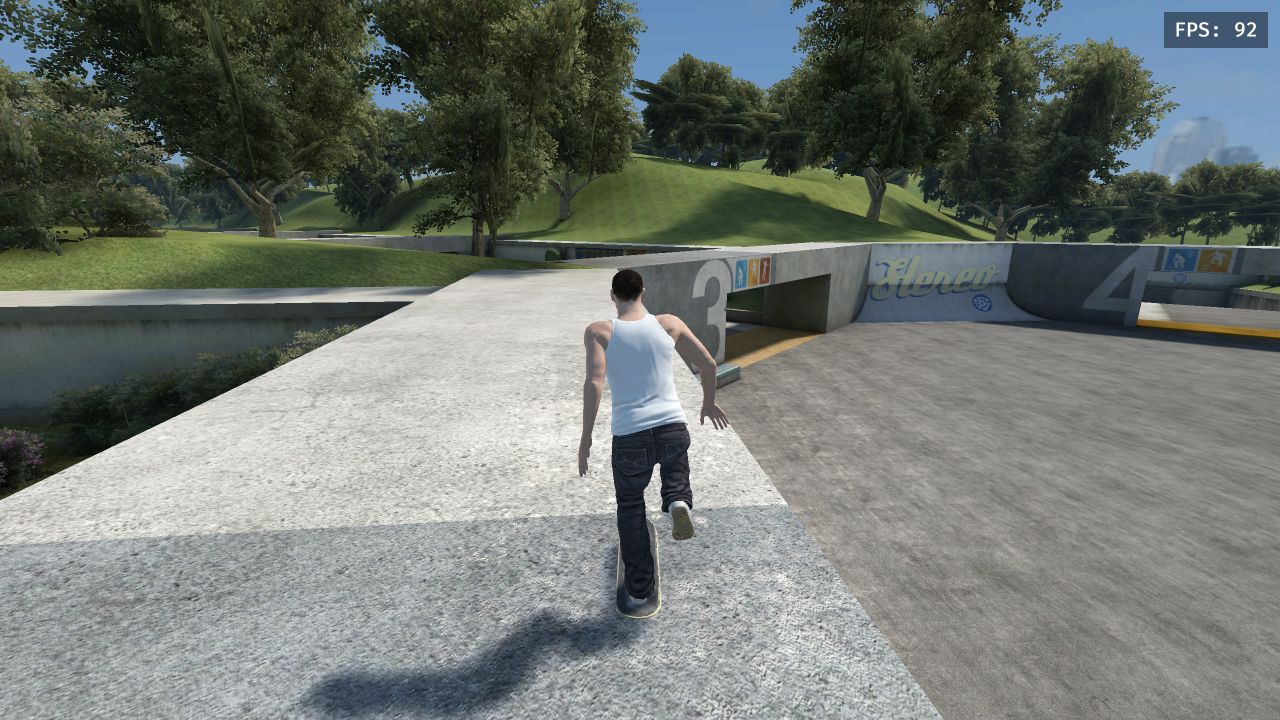
University & Mega-Park
Expansive campus architecture in Skate 3 Browser featuring polished marble ledges, long staircases, fountain gaps, and massive downhill transitions.
Street LinesDowntown Plazas
Fast-paced urban street skating through traffic, high-drop stairs, planter benches, and gritty handrails.
Online Sessions (Multiplayer)
Hit Esc → ONLINE to host your own session or enter a friend's private room code to skate together in real-time.
Skate 3 Browser Not Working? Try These Fixes
Having trouble loading Skate 3 Browser? Check these tested fixes for WebGPU errors, controller input, loading stalls, and canvas focus.
1. Skate 3 Browser Hardware Acceleration Prompt
If you see a prompt asking for hardware acceleration: In Google Chrome or Microsoft Edge, go to Settings → System → toggle 'Use graphics acceleration when available' to ON, then restart your browser.
2. First Load Takes 15-30 Seconds
On your first visit, the engine streams ~38MB of Rust WASM binaries and 3D map data. Keep the tab open while the download progress runs; subsequent visits will load instantly from browser cache.
3. Gamepad Not Responding in Skate 3 Browser
Connect your Xbox or PlayStation controller via USB or Bluetooth. Once the game screen appears, press any button on the gamepad so the browser activates its Gamepad API connection.
4. Keyboard Scrolling Page Instead of Skate 3 Browser Skating
Simply click once anywhere inside the game area to lock input focus to the canvas. Press the Fullscreen button for complete immersion without browser distractions.
5. Stuck Before Skate 3 Browser Menu?
The loading screen is doing real work: the engine boots first, then game data streams in — about 38 MB on a first visit. If the progress stalls, wait a full minute before assuming it's frozen; on slower connections the data stage can sit still and then jump. Still stuck after several minutes? Reload the page once. If it hangs at the same point again, clear this site's stored data in your browser (Settings → Privacy → Site settings → skate3browser.org → Clear data) and load it fresh — a half-finished cache from an interrupted first load is the most common cause. Avoid private/incognito windows for long sessions: they restrict the local storage the game uses to keep its streamed data.
Black screen or WebGPU error?
A black canvas almost always means WebGPU isn't available to the page. Work through it in order: (1) Turn on hardware acceleration — in Chrome, open chrome://settings/system, enable "Use graphics acceleration when available", and relaunch. The game's own "Turn On Hardware Acceleration" prompt means the same thing. (2) Update your browser; WebGPU is still rolling out and old builds are the second most common cause. (3) Check chrome://gpu and confirm WebGPU is "Hardware accelerated" — if it says software rendering, update your graphics drivers, and on dual-GPU laptops force your browser onto the high-performance GPU. (4) If it still fails, try current Chrome or Edge on desktop — WebGPU support is strongest there. More detail in the WebGPU Setup & Performance Guide above.
Menus work but the location does not start?
Menus are light; locations are not. Each spot's data streams in the first time you enter it, so a location can sit on its loading screen well after the menu felt instant — give the first entry up to a minute. Before you press anything, click inside the game area: menus answer mouse clicks, but your keys and gamepad only reach the game while the game frame has focus. If a location still won't start, press Esc to back out to the menu and enter it again; if it fails twice, reload the page and re-enter so the data stream restarts cleanly. On school Chromebooks and other managed devices, network policies can block the stream itself — the same location will usually load on an unrestricted home connection.
Everything You Need to Know About Skate 3 Browser
Yes, Skate 3 Browser is 100% free with no downloads, subscriptions, or paywalls required. You can drop in and play directly in your web browser.
Community Comments & Feedback
Drop the first comment or trick tip for this game!